

Description
Download Lunascape – Free Secure Hybrid Browser with Three Rendering Engines
Overview
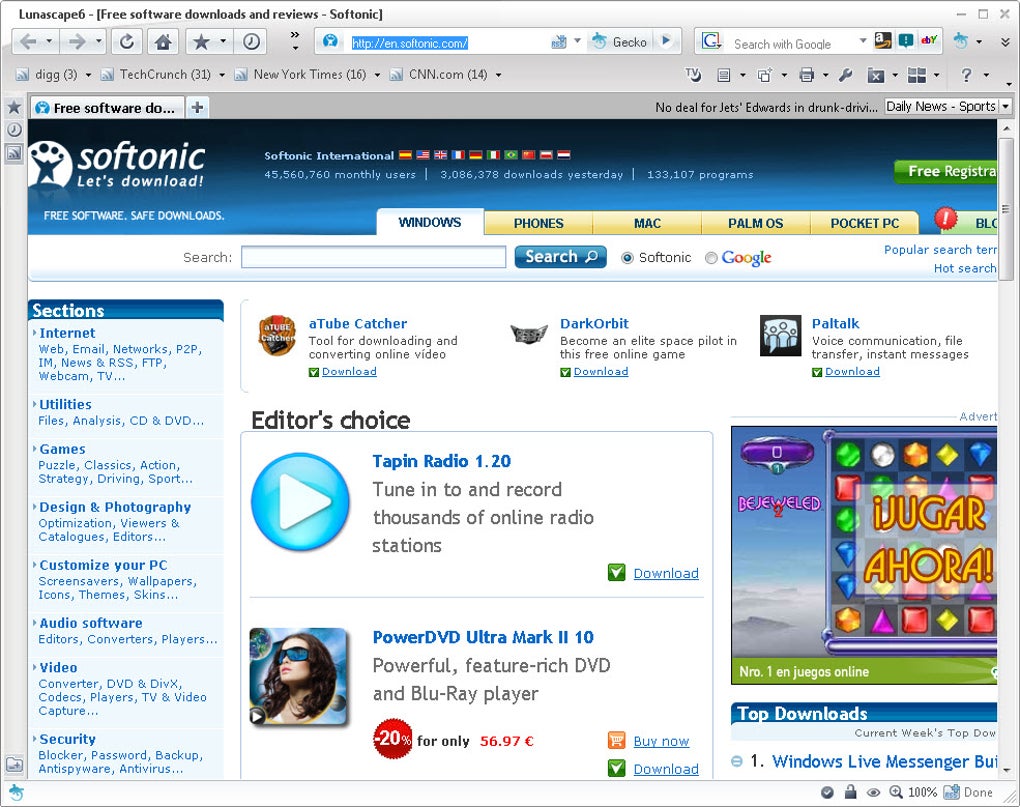
Lunascape is a uniquely versatile web browser that brings together three of the most popular rendering engines—Trident (the engine behind Internet Explorer), Gecko (used by Firefox), and WebKit (the core of Safari and Google Chrome)—into a single, lightweight application. Designed with web designers, developers, and power users in mind, Lunascape lets you test, debug, and experience web pages exactly as they would appear in each of those browsers without the need to launch separate programs or maintain multiple installations. This “one‑stop‑shop” approach saves valuable time, especially when you need to verify cross‑browser compatibility for CSS layouts, JavaScript functionality, or HTML5 features.
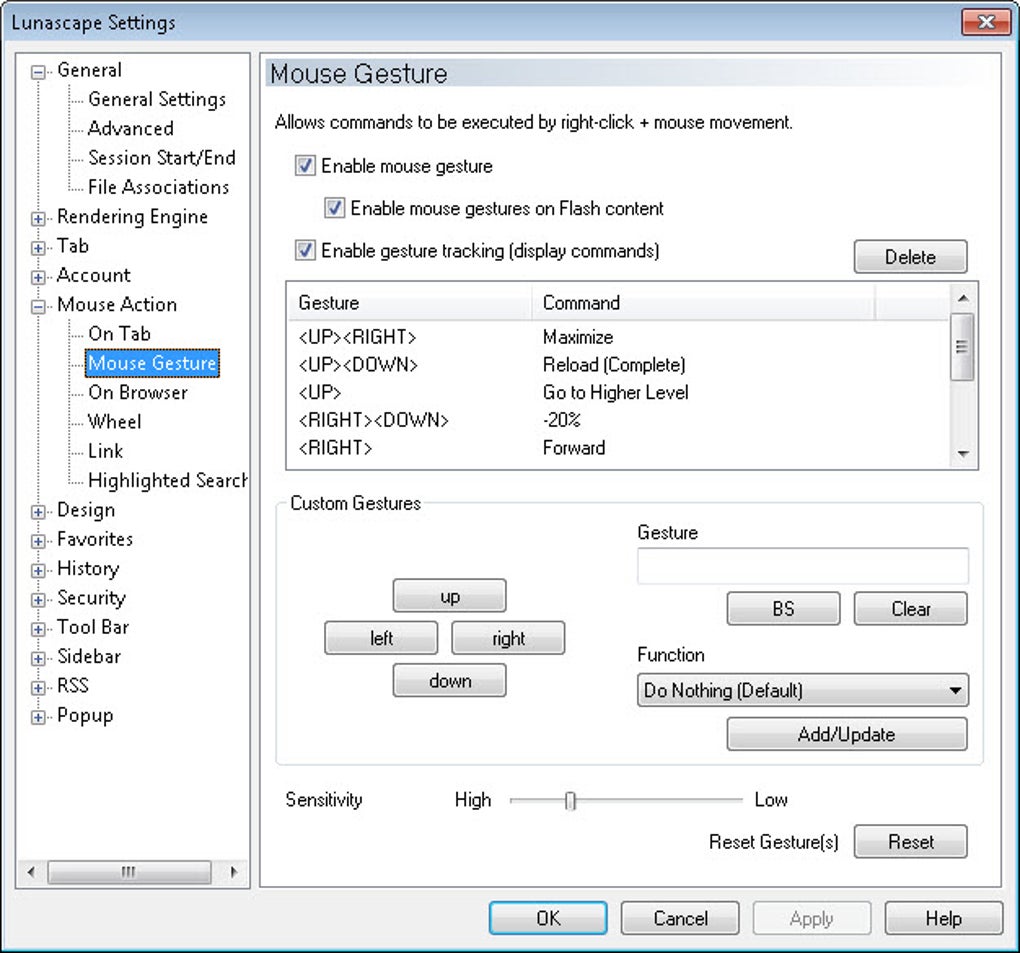
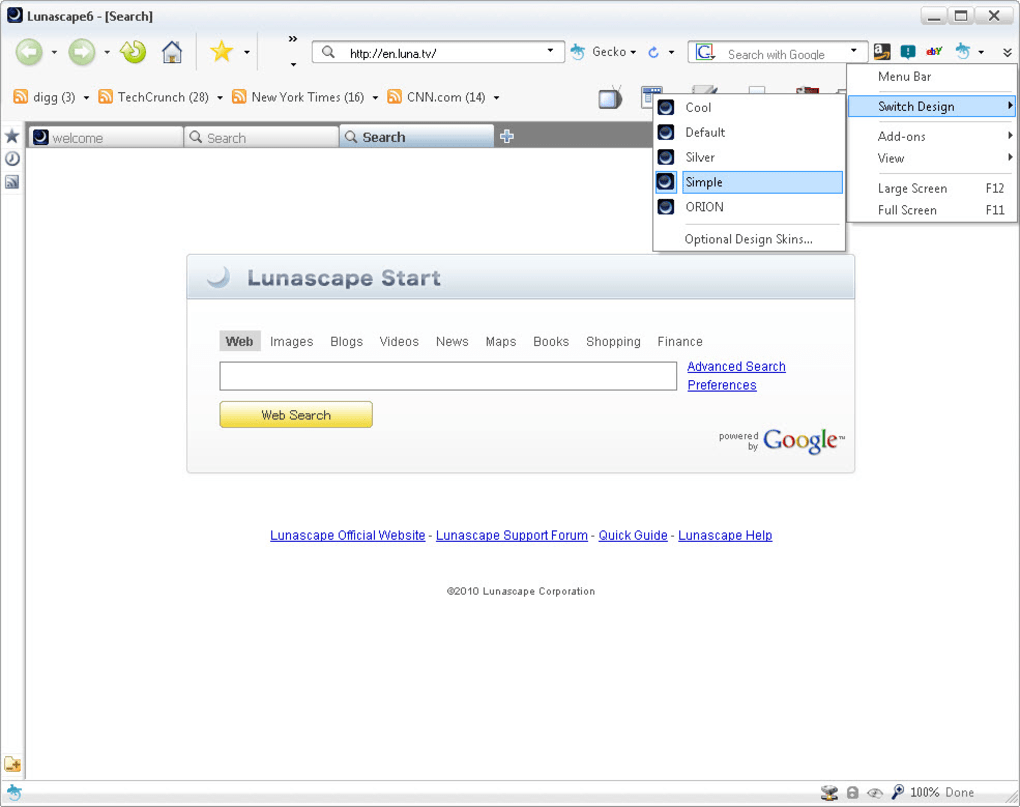
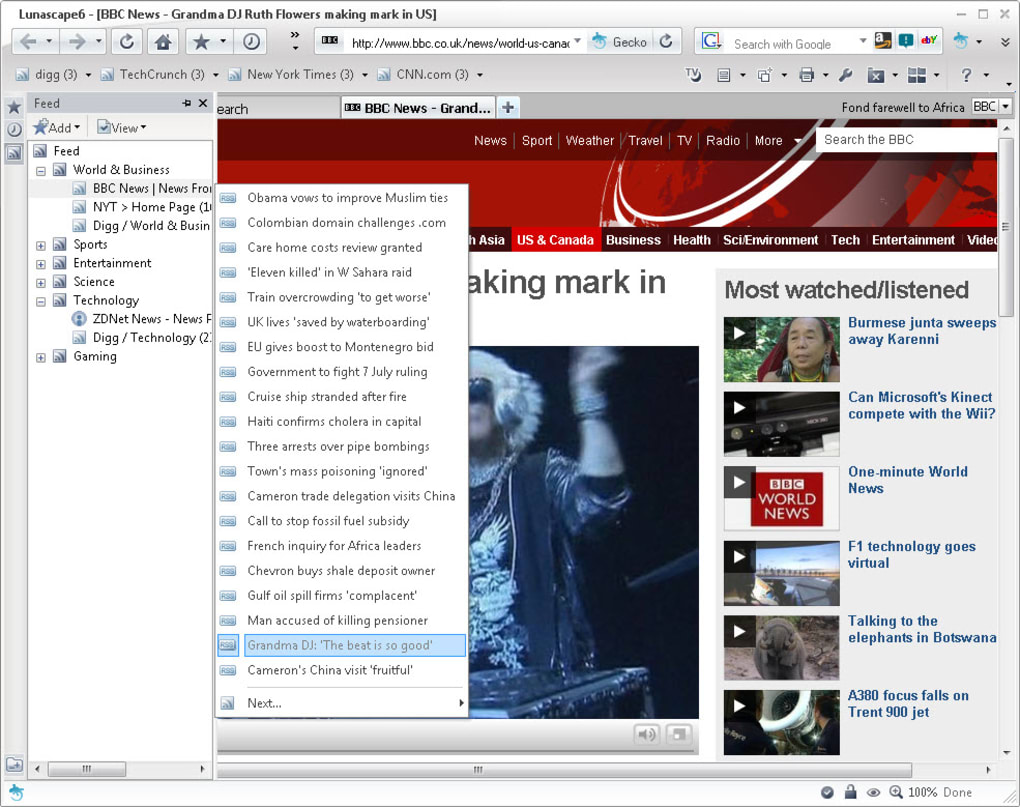
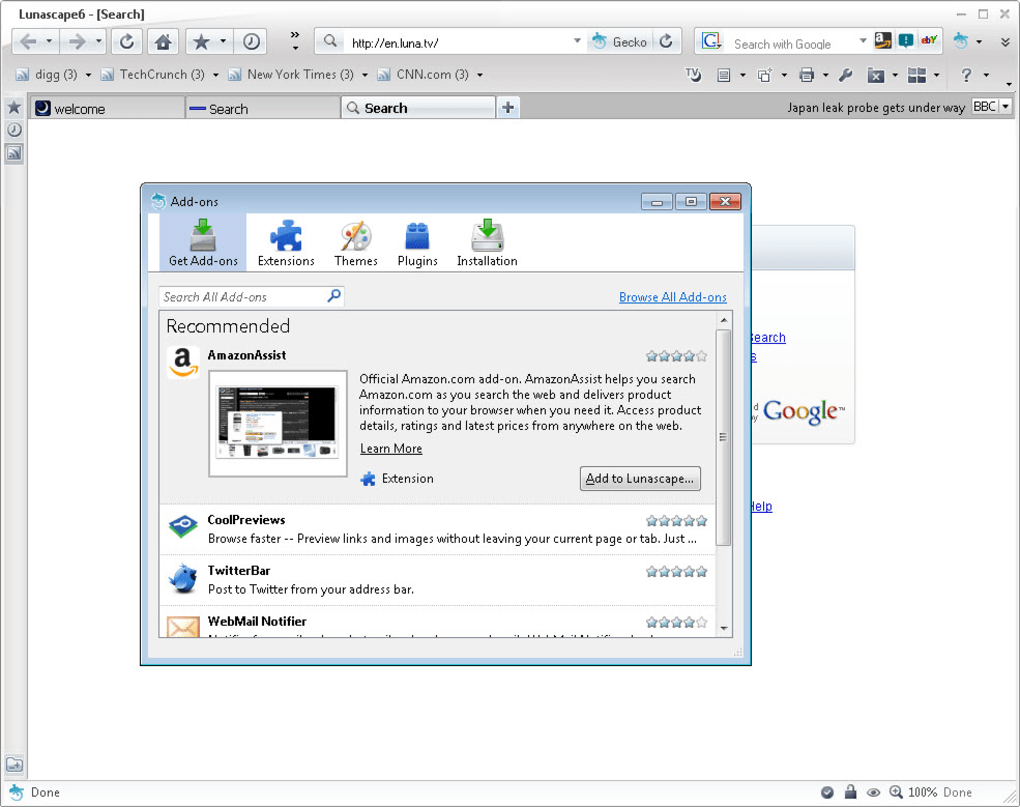
Beyond its triple‑engine capability, Lunascape is packed with productivity‑boosting tools. It supports customizable mouse hotkeys and gestures, a native RSS feed reader, a multi‑search bar that queries several search engines at once, and a full‑featured plug‑in system compatible with most Firefox extensions. Users can personalize the look and feel through skins and theme packs, turning the browser into a truly personal workspace. While the initial setup can feel a bit overwhelming—thanks to the numerous configuration dialogs and notifications—once tuned, Lunascape becomes a powerful ally for anyone who needs to see how a site behaves under different browser standards.
The most recent stable release, version 6.5.0, brings a major update to the WebKit engine (revision 80840) and an upgraded Gecko engine (revision 1.9.2.17, matching Firefox 3.6.17). Benchmarks such as SunSpider show a 20 % speed improvement on JavaScript execution, confirming that the browser not only offers flexibility but also delivers solid performance. Whether you are a freelance developer juggling client projects, a QA tester verifying UI consistency, or simply a curious power user who likes to experiment, Lunascape provides a secure, free, and constantly updated platform for everyday browsing and professional testing alike.
Key Features & Tools
- Three Rendering Engines in One Window: Switch between Trident, Gecko, and WebKit on a per‑tab basis, allowing simultaneous testing of the same page across all major standards.
- Engine‑Specific Developer Tools: Access built‑in debugging consoles that match each engine’s native capabilities, making it easier to pinpoint rendering issues.
- Customizable Mouse Gestures & Hotkeys: Speed up navigation with programmable gestures and shortcuts, reducing reliance on the mouse or keyboard alone.
- Integrated RSS Feed Reader: Stay updated on your favorite blogs and news sites without leaving the browser.
- Multi‑Search Bar: Query several search engines (Google, Bing, Yahoo, DuckDuckGo, etc.) at once and view combined results.
- Extension Compatibility: Install most Firefox add‑ons directly, extending functionality with ad blockers, password managers, and more.
- Skin & Theme Support: Choose from a library of community‑created skins or create your own to match your workflow aesthetics.
- Secure Browsing Options: Built‑in phishing protection, sandboxed tabs, and regular security patches keep your data safe.
- Automatic Updates: The browser checks for engine and security updates daily, ensuring you always run the latest stable versions.
- Lightweight Footprint: Despite its extensive feature set, Lunascape remains under 150 MB on disk and uses minimal RAM compared to running three separate browsers.
Installation & Usage Guide
Downloading the Installer
Visit the official Lunascape website and click the “Download” button that corresponds to your operating system. The installer is available for Windows (both 32‑bit and 64‑bit) and macOS. For Android and iOS users, a mobile‑optimized version is offered through the respective app stores, though the triple‑engine feature is currently limited to desktop platforms.
Step‑by‑Step Installation (Windows)
- Run the
LunascapeSetup.exefile you just downloaded. - Accept the license agreement and choose an installation folder (default is
C:\Program Files\Lunascape). - Select the components you wish to install. For first‑time users, it’s recommended to keep all three engines selected.
- Click “Install” and wait for the progress bar to complete. The installer will also prompt you to create a desktop shortcut.
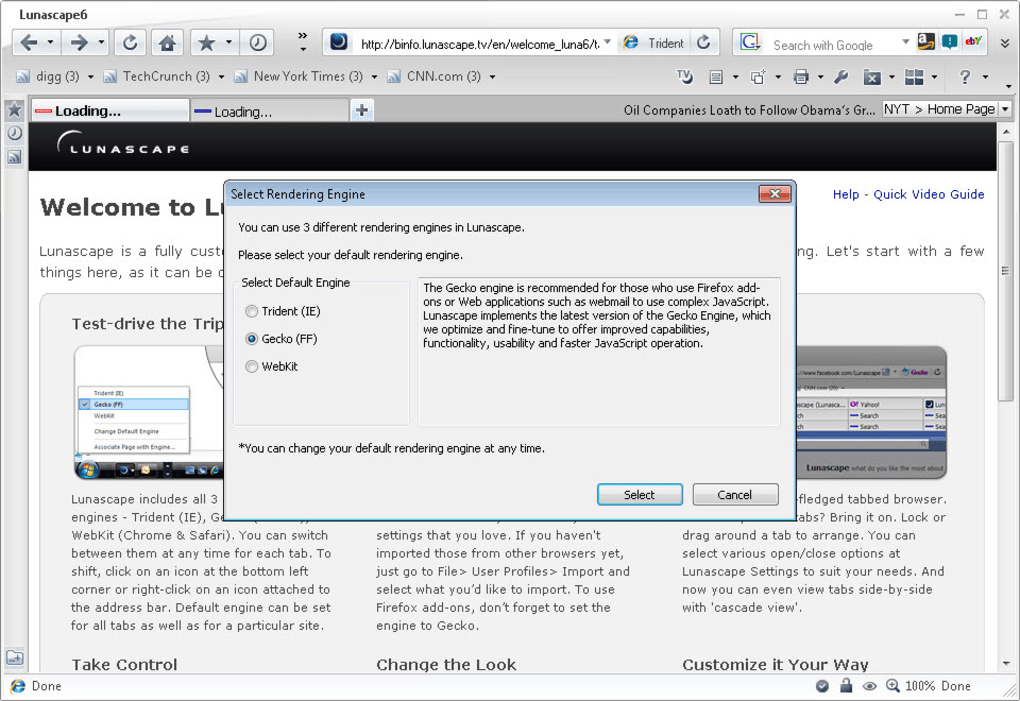
- After installation, launch Lunascape. The first‑run wizard will ask you to set your default engine, import bookmarks, and configure privacy settings.
First‑Run Configuration
The initial wizard can feel chatty, but it’s an opportunity to tailor the browser to your workflow. Choose “Custom” if you want to keep all three engines active. Import your existing bookmarks from Chrome, Firefox, or IE to keep continuity. Enable “Automatic Engine Switching” if you’d like the browser to remember which engine you used for a particular site and reopen it that way.
Switching Engines on the Fly
Each tab displays a small engine icon on its left edge. Click the icon to open a dropdown menu and select Trident, Gecko, or WebKit for that specific tab. You can also set a global default engine via Settings → General → Default Rendering Engine. For power users, keyboard shortcuts (Ctrl + 1/2/3) allow instant engine swapping without leaving the keyboard.
Troubleshooting Common Issues
- Engine Not Rendering Correctly: Clear the cache for that engine via Settings → Privacy → Clear Cache and reload the page.
- Extension Compatibility Errors: Ensure you’re using the latest version of the extension; some older Firefox add‑ons may need updates.
- Performance Lag: Disable any unused engine in Settings → Engines to reduce memory overhead.
Compatibility, Performance & System Requirements
Lunascape runs on the following platforms:
- Windows 10, 8.1, 7 (both 32‑bit and 64‑bit)
- macOS 10.13 (High Sierra) and newer
- Android 5.0+ (limited to a single engine)
- iOS 11+ (limited to a single engine)
The desktop version requires a minimum of 2 GB RAM and 150 MB of free disk space. For optimal performance—especially when using all three engines simultaneously—a modern multi‑core processor (Intel i5/i7 or AMD equivalent) and at least 4 GB RAM are recommended. The browser leverages hardware acceleration for WebKit and Gecko, which can be toggled in Settings → Advanced → Use Hardware Acceleration.
Performance Benchmarks
In the SunSpider JavaScript benchmark, Lunascape’s WebKit engine achieved a 20 % speed increase over its previous release, while the Gecko engine now aligns with Firefox 3.6.17 performance levels. Trident, although older, has been optimized for faster DOM rendering and reduced memory leaks. Real‑world testing shows page load times comparable to native Chrome or Firefox when the respective engine is selected, making Lunascape a practical alternative for everyday browsing as well as specialized testing.
Security & Update Cycle
Security updates are delivered automatically every 48 hours. The browser incorporates standard features such as phishing protection, sandboxed tabs, and optional third‑party sandbox plugins. Users can manually trigger an update via Help → Check for Updates. All engine updates are signed and verified to prevent tampering.
Pros, Cons, Frequently Asked Questions & Final Verdict
Pros
- Three rendering engines in a single, free application.
- Ideal for cross‑browser testing without installing multiple browsers.
- Extensive customization through skins, gestures, and extensions.
- Built‑in RSS reader and multi‑search bar increase productivity.
- Regular security patches and automatic engine updates.
Cons
- Initial setup can be confusing due to numerous configuration dialogs.
- Mobile version lacks the triple‑engine feature.
- Some newer web standards may not be fully supported in the Trident engine.
- Resource usage rises when all three engines are active simultaneously.
FAQ – Frequently Asked Questions
Can I set a default engine for all new tabs?
Yes. Go to Settings → General → Default Rendering Engine and choose Trident, Gecko, or WebKit. New tabs will open with the selected engine unless you manually change it.
Is Lunascape safe to use for everyday browsing?
Absolutely. The browser includes phishing protection, sandboxed tabs, and automatic security updates. It’s free of hidden telemetry and respects user privacy.
Can I import bookmarks from Chrome or Firefox?
During the first‑run wizard you’ll be prompted to import bookmarks, history, and saved passwords from Chrome, Firefox, or Internet Explorer. You can also import later via Settings → Import & Export.
Does the browser support modern HTML5 and CSS3 features?
Yes. Both Gecko and WebKit engines are up‑to‑date with HTML5, CSS3, and many newer JavaScript APIs. Trident supports older standards, which can be useful for legacy site testing.
Is there a paid version or premium support?
Lunascape is completely free. All core features, including the three engines, are available at no cost. Support is provided through community forums and a knowledge base.
Final Verdict & Call to Action
Lunascape stands out in a crowded browser market by delivering a truly hybrid experience that empowers developers, designers, and power users to test and browse with unparalleled flexibility. While the learning curve may be a bit steep for newcomers, the payoff—being able to view any website exactly as it would render in IE, Firefox, or Chrome without switching programs—is priceless for anyone serious about web compatibility. If you’re looking for a free, secure, and constantly updated browser that consolidates three engines into one, Lunascape is the answer. Download Lunascape today, configure your preferred engines, and experience the convenience of a single browser that does it all.
Guides & Tutorials for Lunascape
How to install Lunascape
- Click the Preview / Download button above.
- Once redirected, accept the terms and click Install.
- Wait for the Lunascape download to finish on your device.
How to use Lunascape
This software is primarily used for its core features described above. Open the app after installation to explore its capabilities.
User Reviews for Lunascape 0
No reviews found





